➕ Create a Collection
Pricings can be part of a collection. These elements are useful for organizing several versions of the same pricing plan, by analogy they are the equivalent to folders in an OS.
0. Prerequisites
To upload a pricing to SPHERE, you must have a registered account.
1. Navigate to your profile
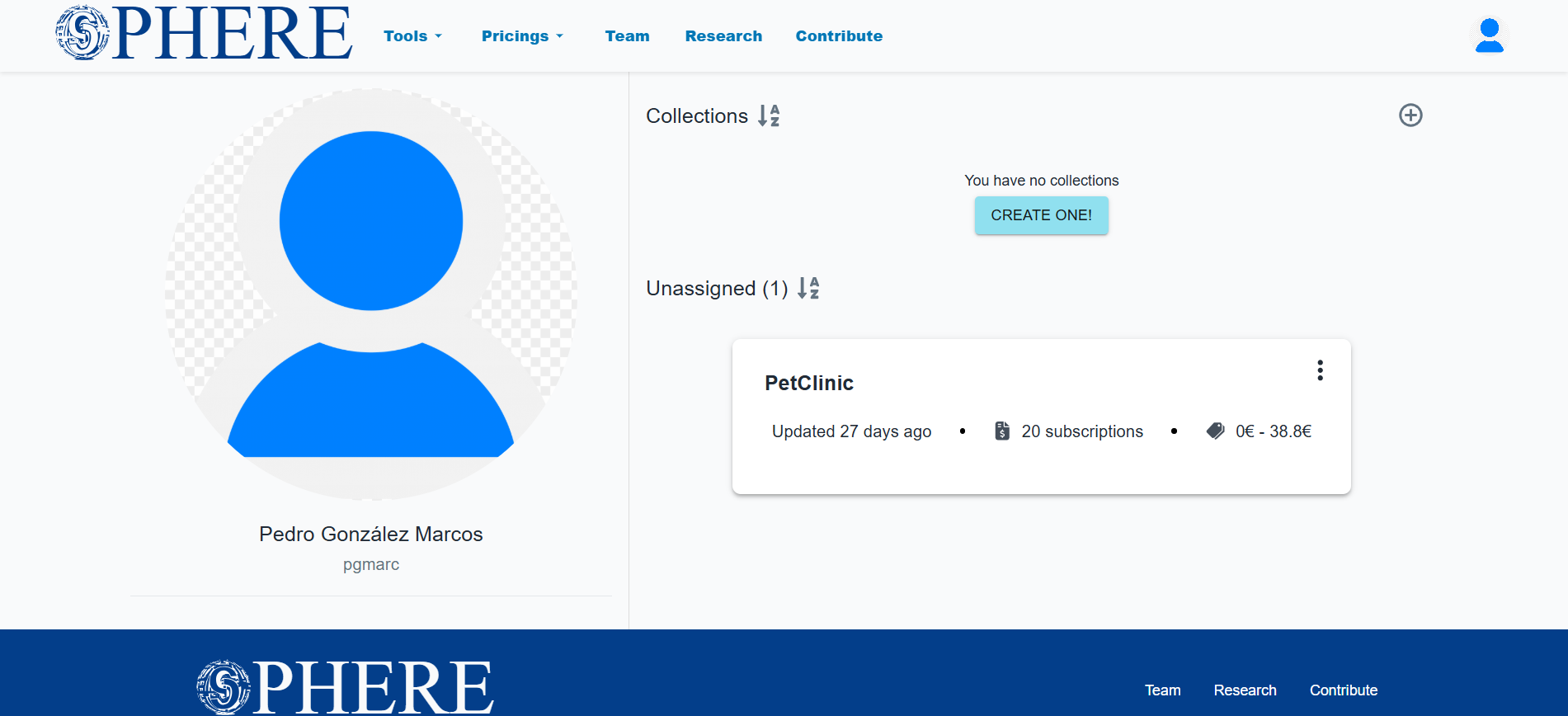
Go to your profile page, in the case that you don't have any collection registered in your profile a button will appear asking you to create one:
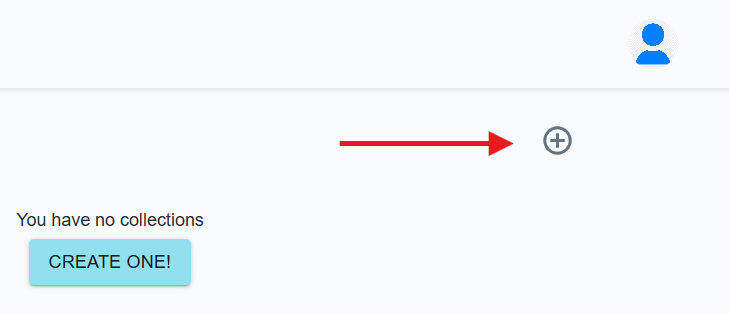
In the case that you already have registered collections, you can add one by clicking the ✚ button in the upper right corner of the collections list.
2. Create a collection
When you click the ➕ button a form will appear. You will need to provide the following information:
- Collection name
- Collection description
- Choose collection visibility
- A section to add pricings to the collection (Manually or in bulk)
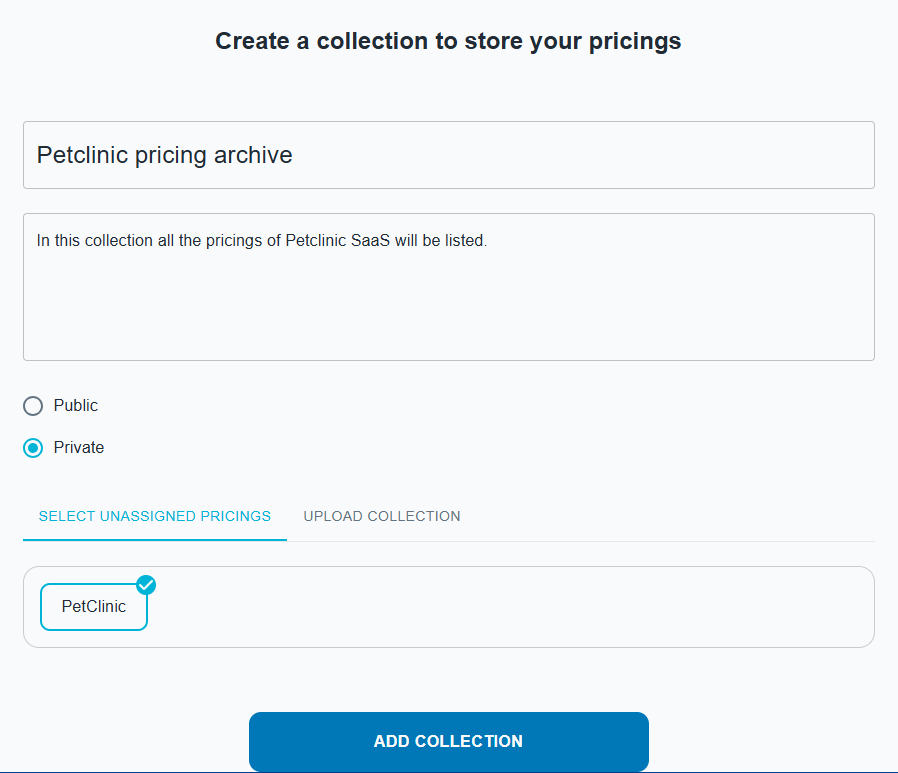
A collection's visibility can be set to one of two states:
- public: any user will be able to view your collection at the Pricings search page
- private: you will only be able to your collection in SPHERE.
When you have finished filling the data click the ADD COLLECTION button.
You can add a pricing to a collection in two ways:
- Manual
- In bulk
If you have already uploaded pricing to your profile, they will not be assigned to any collection by default. To assign a pricing plan to a collection, click on it (a ✅ will appear, indicating that the plan has been selected). If you don't want to include it, click again to deselect it.

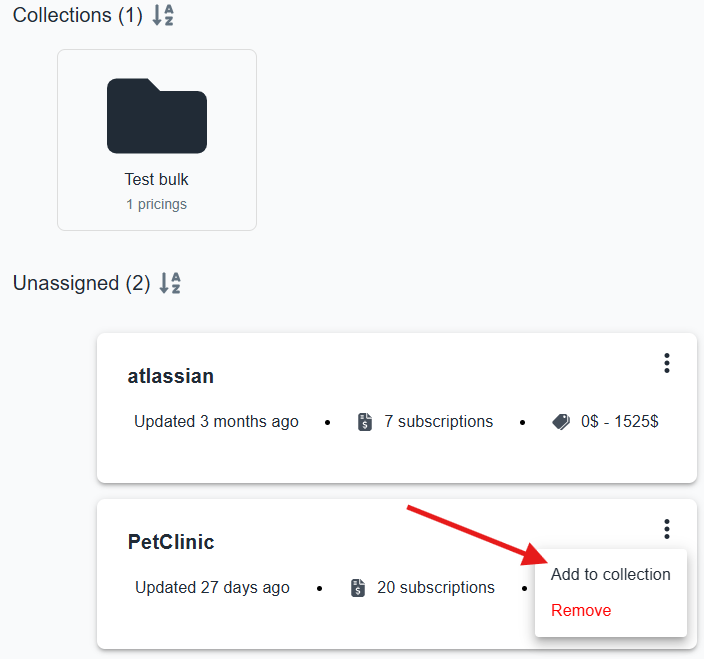
In your profile view, you can also assign a pricing to a collection individually if you select Add to collection action by clicking on the three dots (⋮) of a pricing item.
Instead of uploading each pricing plan individually and assigning it to a collection, you can upload a
.zip file containing all the pricings of your collection at once. You will need to create a folder on
your computer containing all the Pricing2Yaml files. Then, compress the folder into a .zip file and upload it to SPHERE.
Here is an example of a valid folder structure:
└── petclinic/
    ├── 2023-petclinic.yaml
    ├── 2024-petclinic.yaml
    └── 2025-petclinic.yaml
3. View your collection
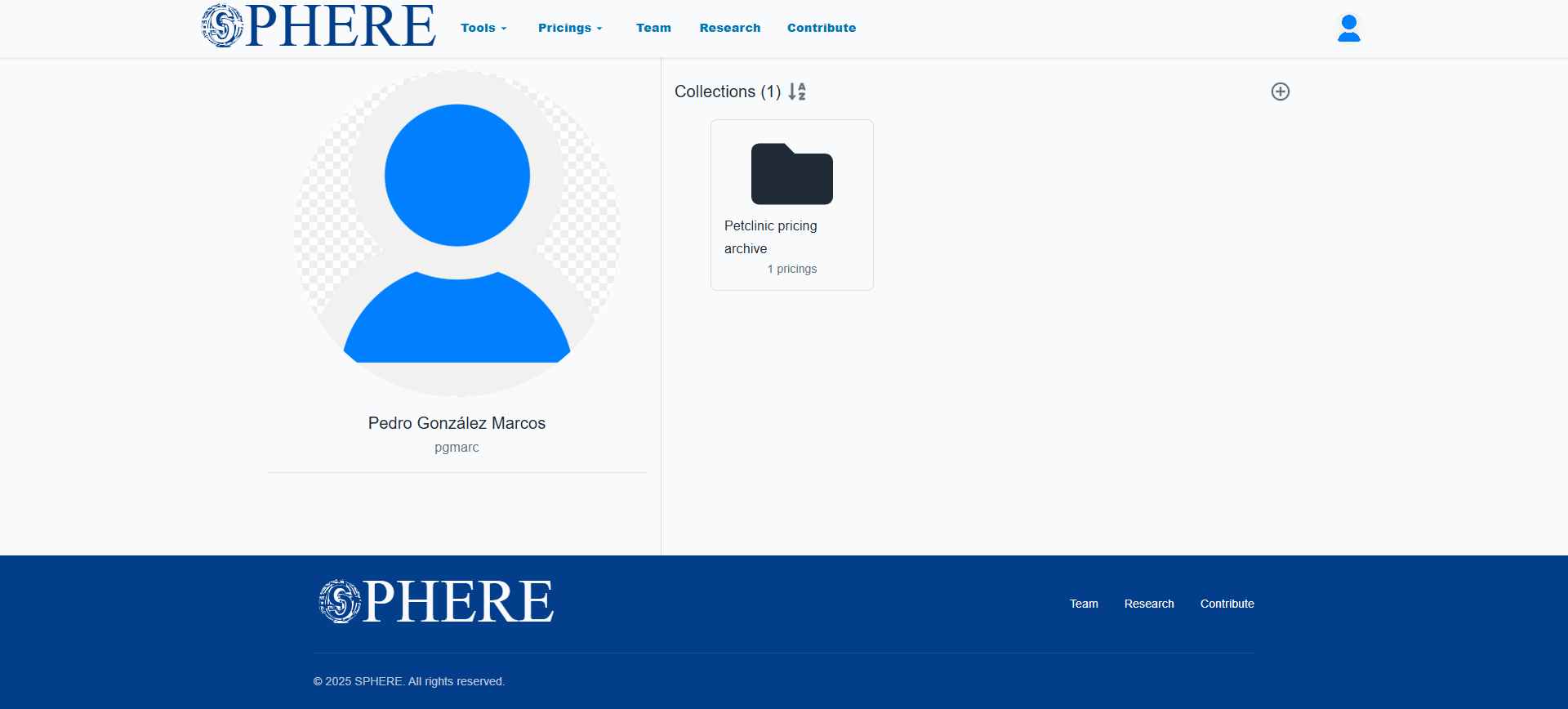
The created collection will appear in the section Collections in your profile (you change the settings of your collection if you click inside that item):