➕ Create a Pricing
0. Requisites
To upload a pricing to SPHERE, you must have a registered account.
1. Select Upload Pricing option
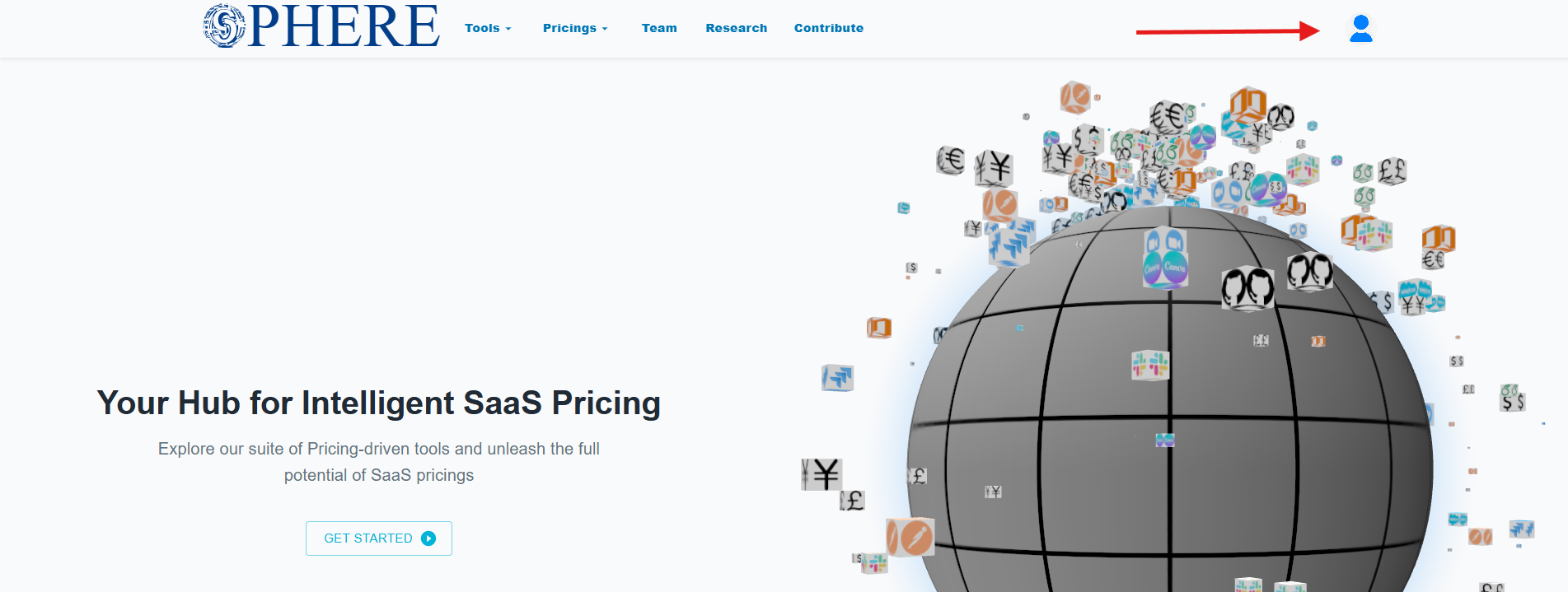
Once you have logged into your account, click on the avatar located in the top-right corner of your screen:
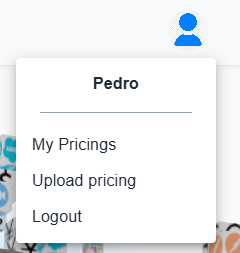
Select Upload Pricing action in the modal:
2. Pick your pricing
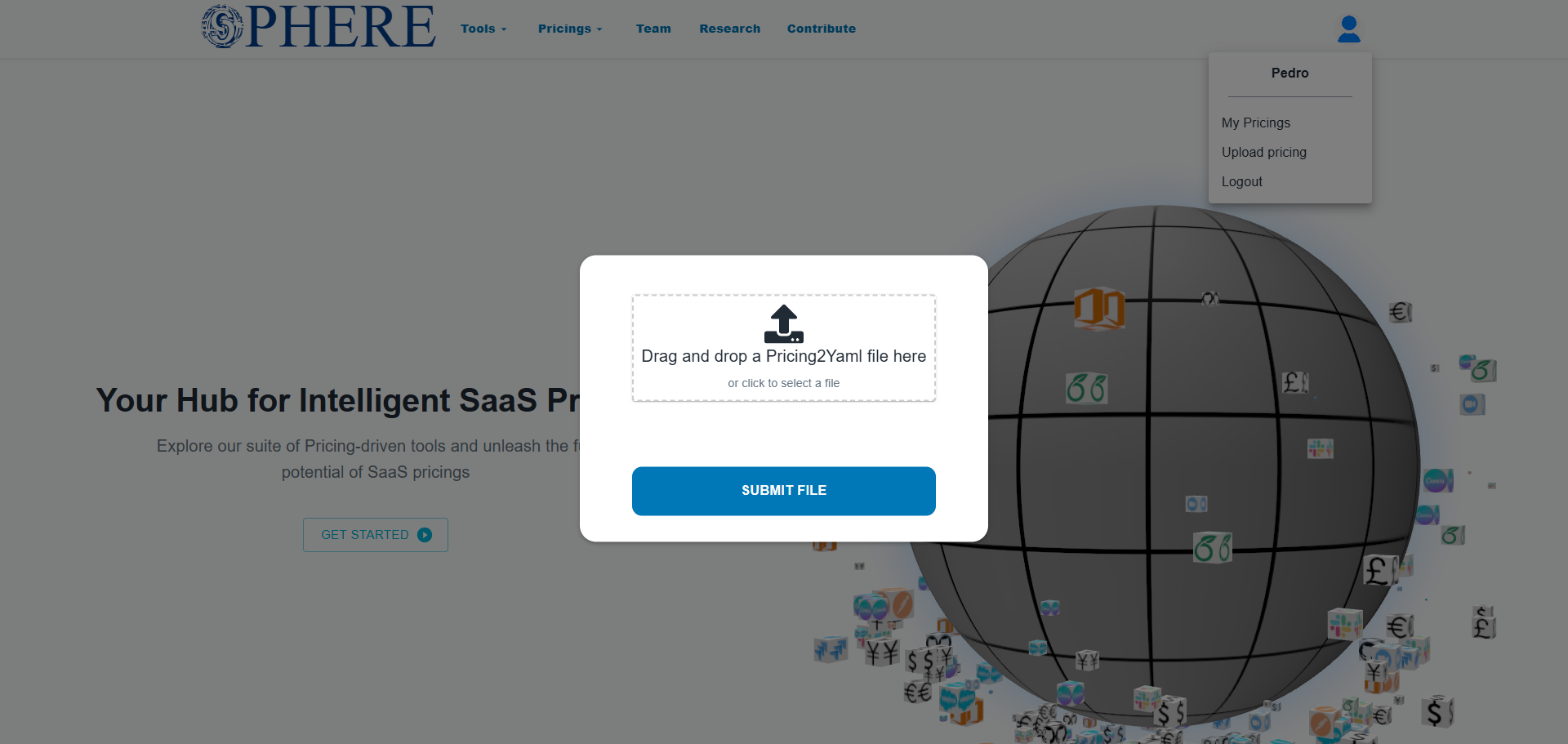
A modal will appear prompting you to upload a Pricing2Yaml file. Once you have selected a Pricing2Yaml file on your computer click on Submit File button:
3. Visualize your pricing
If everything went well, click the avatar icon again and select My Pricings, you’ll see your newly created pricing listed there:
The UI may not display the uploaded pricing, even though the upload was completed successfully. We are aware of this problem a we will enventually solve this bug.
For now, always refresh the page every time you upload a pricing.
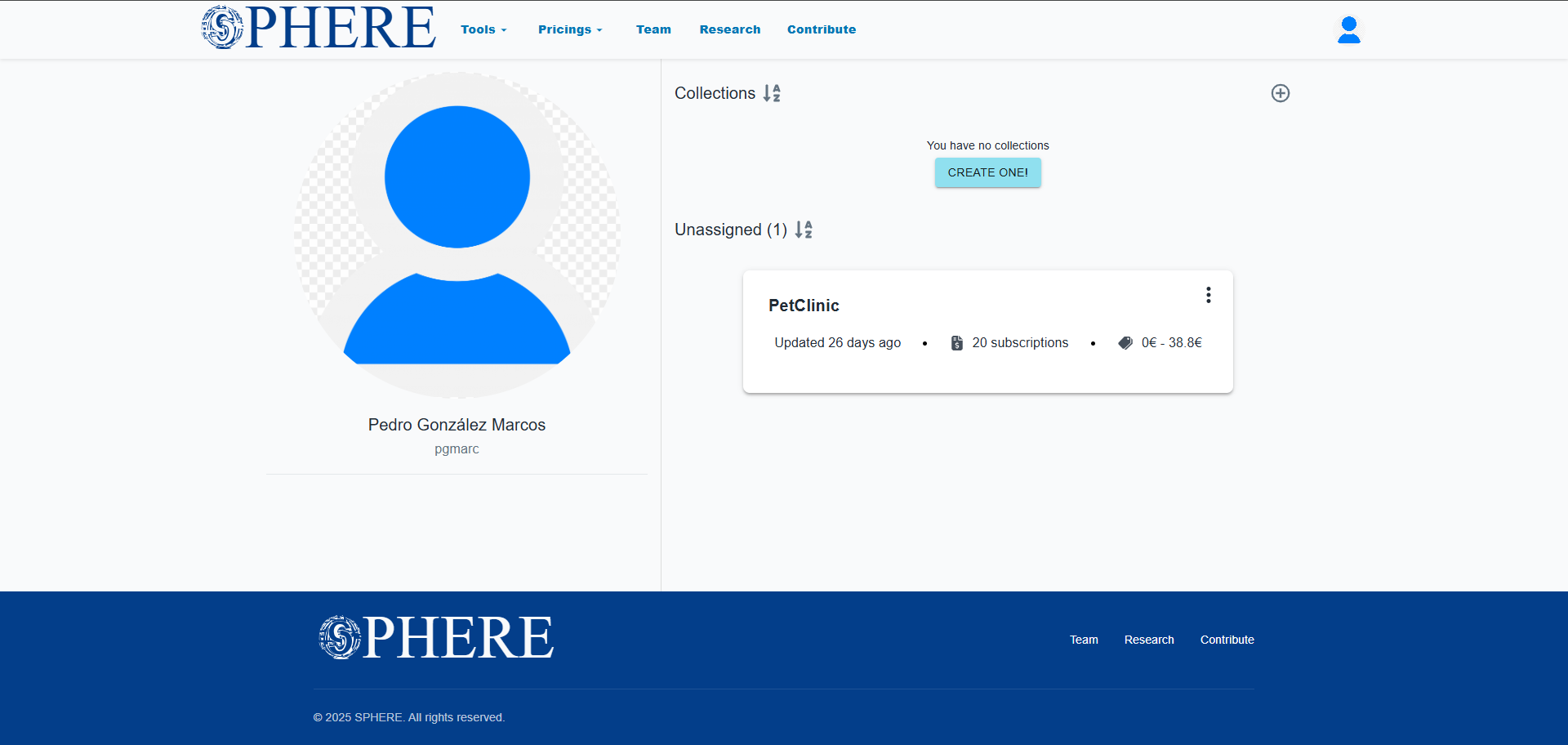
Pricings can be organized into collections. When you upload a pricing, it isn’t automatically assigned to any collection. You’ll need to manually assign your pricing to a specific collection.
If you click inside the pricing card you will see a dashboard with information about the pricing. See the Pricing card section for more details.