Create and import collections
Collections provide metadata, visibility, and access control for a curated set of pricings.
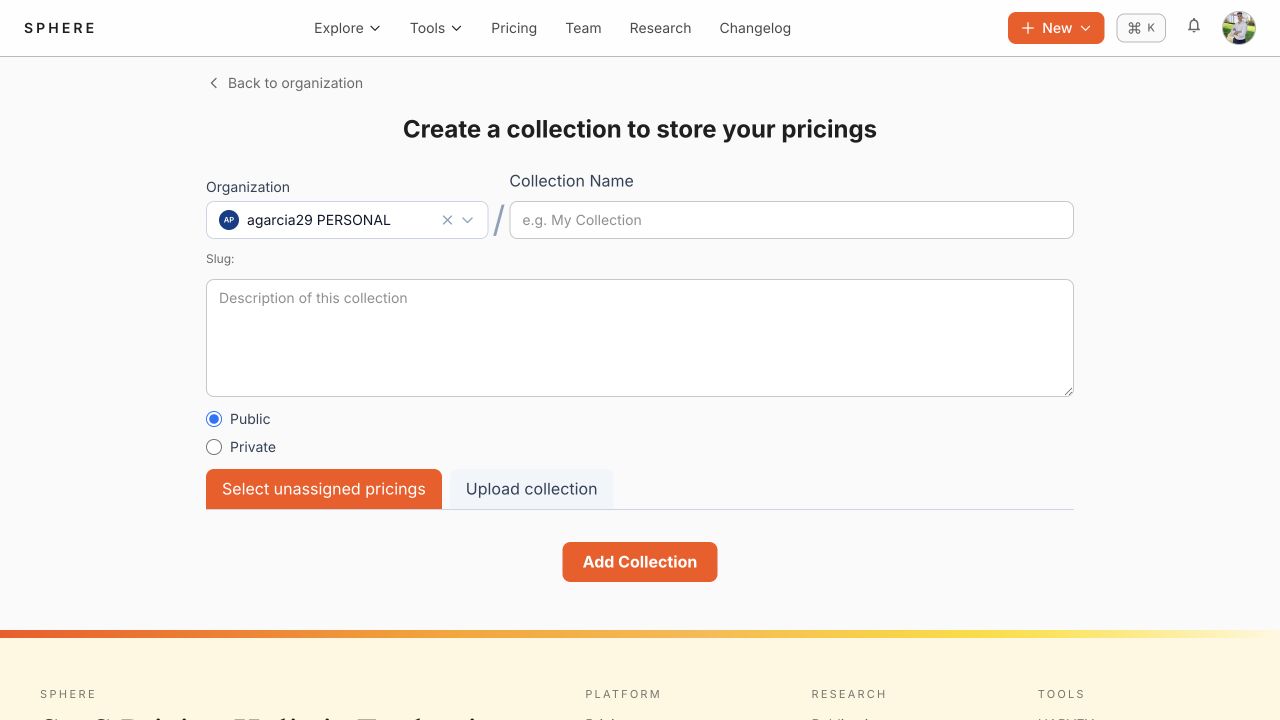
Create a collection manually
- Select New → Collection, or use the organization Collections tab.
- Confirm the destination organization.
- Enter the collection name and description.
- Select public or private visibility.
- Select Select unassigned pricings to add existing, unassigned pricings.
- Select Add Collection.
Import a collection from a ZIP archive
- In the collection form, select Upload collection.
- Drop a
.ziparchive onto the upload area or select it from disk. - Complete the collection metadata and select Add Collection.
- Review the import result and correct any reported invalid files before retrying them.
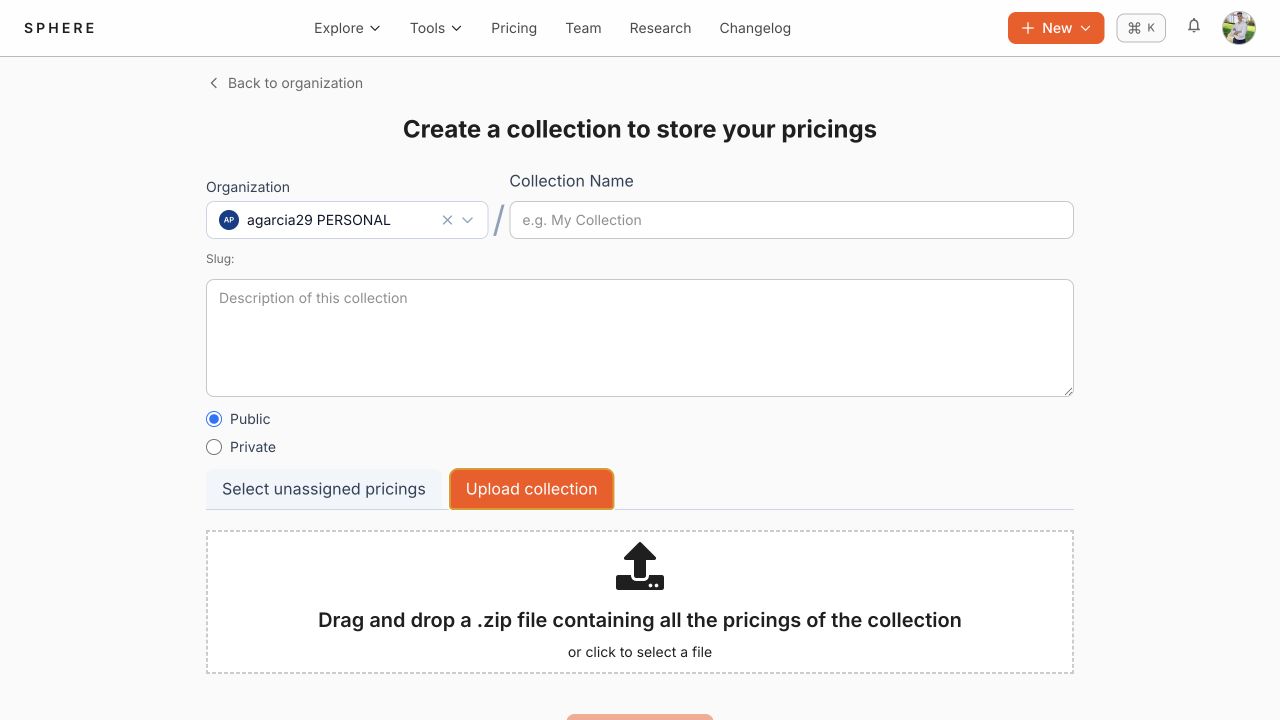
Each top-level directory represents a SaaS application and contains that pricing's versioned YAML files. For example:
pricing-dataset.zip
└── AcmeCRM/
    ├── 2024.yml
    └── 2025.yml
SPHERE validates individual files so an isolated invalid YAML file does not prevent valid files from being imported. A fatal import error rolls back the operation.
Manage an existing collection
Open a collection from the public catalogue, your organization, or My Collections. Its workspace provides the following actions:
- Download exports the collection data.
- Pricings lists the contained pricings and lets you open each pricing card.
- Analytics aggregates the collection's available pricing metrics.
- Settings changes collection metadata and visibility, or removes the collection when you have the required permission.
Use the ordering control to change the presentation order of the pricing list. Moving a pricing into or out of a collection affects the collection-level permissions that apply to it.